BitLocker in 2026: Why Windows Now Encrypts Your Drive Without Asking, What Triggers the Blue Recovery Key Screen, and How to Store Keys So a Lost Laptop Stays a Hardware Problem
- Equipo de Internet Pros
- October 21, 2026
- Redes y Seguridad
Este artículo está disponible solo en inglés.
A laptop goes missing from a car. With full-disk encryption turned on, the business has lost about a thousand dollars of hardware. Without it, the business may have a data breach: every saved file, email cache and browser session on that drive is readable by whoever plugs it into another computer. Windows now turns encryption on by itself on most new PCs. That is mostly good news, until the day a blue screen asks for a 48-digit recovery key that nobody saved.
Windows Now Encrypts Without Asking
Starting with Windows 11 version 24H2, Microsoft relaxed the hardware requirements for device encryption, the automatic, simplified form of BitLocker. On a clean install or a new PC, the system drive is usually encrypted during setup as soon as the user signs in with a Microsoft account or a work account. This applies to Windows 11 Home as well as Pro. The recovery key is uploaded quietly to that account.
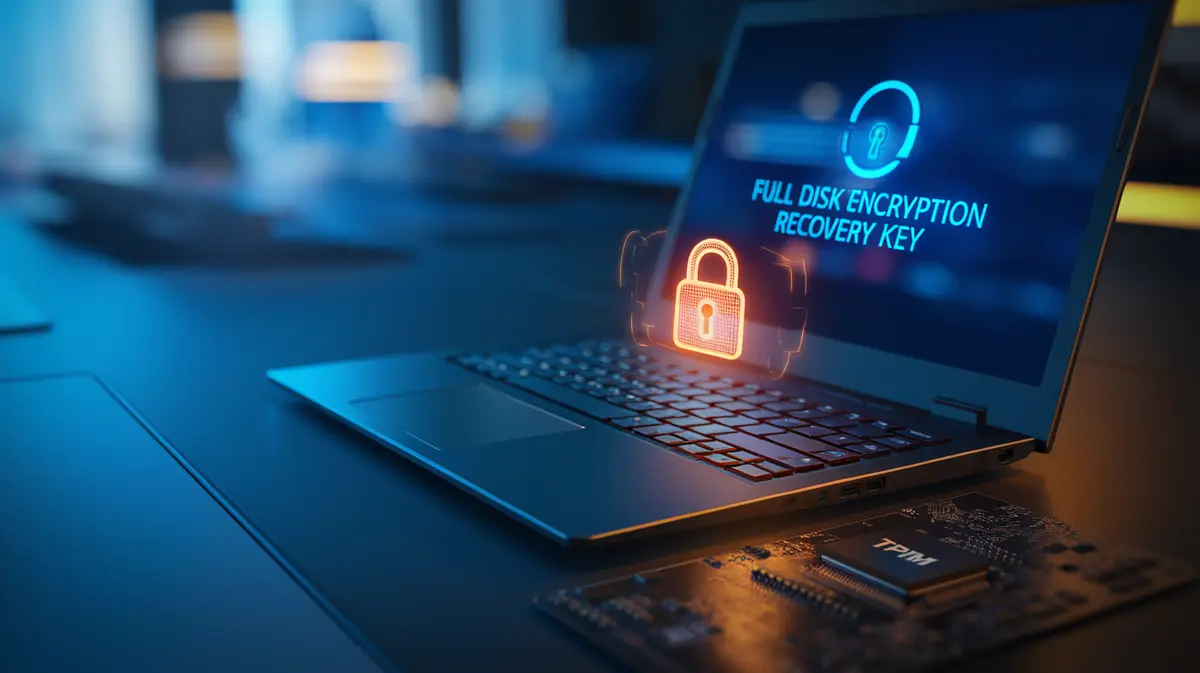
Many owners never notice. The drive unlocks automatically each time the PC starts, because the key is sealed inside the TPM (Trusted Platform Module), the security chip that Windows 11 requires. The TPM releases the key only if the firmware, Secure Boot settings and boot manager look the same as when the key was sealed. If anything in that chain changes, the TPM keeps the key locked and Windows asks for the recovery key instead.
Encryption is only as good as your ability to unlock it later. A drive with no stored recovery key is protected from thieves and from you.
What Actually Triggers the Recovery Screen
The recovery prompt is not a sign of an attack in most cases. It is the TPM doing its job after something changed in the boot path. Common triggers include:
- Firmware and BIOS updates that change the measurements the TPM checks, especially when BitLocker was not suspended first.
- Secure Boot changes, such as turning it off, resetting keys, or the certificate and boot manager updates Microsoft is rolling out this year.
- Clearing or resetting the TPM, or swapping the motherboard during a repair.
- Moving the drive to a different computer.
- Boot changes, such as booting from USB, changing boot order, or some docking stations that present a network boot option.
- Too many wrong PIN attempts when a startup PIN is in use.
The most famous example came in July 2024, when a faulty CrowdStrike update crashed about 8.5 million Windows machines. The fix required starting each PC in Safe Mode, and on BitLocker-protected machines that meant typing the recovery key by hand. Organisations that had their keys in a searchable console recovered in hours. Others spent days hunting for keys, some stored on servers that had crashed too.
TPM-Only Versus a Startup PIN
BitLocker can unlock a drive in several ways. The default is the most convenient, not the most secure.
| Unlock method | What the user does | What it protects against |
|---|---|---|
| TPM only (default) | Nothing; the PC boots straight to the Windows sign-in | Drive removed and read in another machine. Weaker against a skilled attacker who has the whole laptop |
| TPM + PIN | Types a short PIN before Windows starts | Adds protection against attacks on the TPM and boot chain while the laptop is powered off |
| Password only (no TPM) | Types a passphrase at boot | Common on removable drives with BitLocker To Go; depends entirely on passphrase strength |
The case for a PIN has grown. Researchers have shown that on PCs with a separate TPM chip, the key can be read off the circuit board with a cheap logic probe as it travels to the processor. The “bitpixie” technique, shown publicly in late 2024, abuses an old, still-trusted Windows boot manager to pull the key from memory on TPM-only machines. Both need physical access and skill, but a stolen laptop gives an attacker both time and physical access. For laptops that hold client records, finance data or admin credentials, a pre-boot PIN is the cheap fix.
Where the Recovery Key Should Live
The recovery key is a 48-digit number that unlocks the drive when the TPM will not. Where it is stored depends on how the PC was set up:
- Personal Microsoft account. Home and small-office PCs back the key up here automatically. It can be found at aka.ms/myrecoverykey, but only by whoever controls that account. If an employee set up a company laptop with their personal account, the business does not hold the key.
- Microsoft Entra ID and Intune. Work PCs joined to Entra ID store the key in the device record, where IT can look it up. Intune can require the backup before encryption starts and rotate the key after each use.
- Active Directory. Domain-joined PCs can store keys on the computer object in on-premises AD.
- Printed or saved to a file. Fine for a single home PC, poor for a business. Paper gets lost, and a file saved on the same encrypted drive is useless.
Macs work in a similar way. Apple silicon Macs always encrypt their internal storage in hardware, and turning on FileVault adds the requirement for a password at startup. Businesses should escrow FileVault recovery keys with their device management tool, not leave them with each user’s iCloud account.
A BitLocker checklist for small businesses
- Find out what is encrypted. Run
manage-bde -statusor check your device management console. Some PCs will be encrypted that you assumed were not, and the reverse. - Move every company key into a company system. Entra ID, Intune or AD, never a staff member’s personal account.
- Test a recovery. Pick one laptop, look up its key from the console, and unlock it. Time how long it takes.
- Keep an offline copy of keys for your most critical machines, so an outage that takes down your servers does not also lock you out of them.
- Suspend BitLocker before firmware updates with
manage-bde -protectors -disable C: -RebootCount 1, or let your patching tool handle it. - Add a startup PIN on laptops that leave the office and hold sensitive data.
Why It Matters Beyond Theft
Encryption also changes what happens after a loss. Most US state breach notification laws, and the HIPAA breach rules for healthcare providers, treat properly encrypted data as not breached when the key was not also exposed. A lost laptop that was encrypted, with the key stored safely elsewhere, usually needs an incident note rather than letters to every customer. That only holds if you can prove the device was encrypted, which is another reason to manage it from a central console.
En resumen
Microsoft has made full-disk encryption the default, which closes the biggest gap: unencrypted laptops walking out of the building. The part it cannot do for you is decide where the keys live. Make sure every company device stores its recovery key in a company system, test that you can get one out quickly, and add a PIN on the laptops that matter most. Then a lost laptop stays a hardware problem.
Not sure where your recovery keys are?
Internet Pros audits BitLocker and FileVault coverage, moves recovery keys into Microsoft Entra ID, Intune or your device management tool, and tests recovery before you need it. Contact our team for an endpoint encryption check.