Data Sanitization in 2026: Why Deleting Files and Formatting a Drive Leaves Your Data Behind, What NIST Clear, Purge and Destroy Actually Mean, and How to Retire Old Laptops and SSDs Safely
- Internet Pros Team
- October 9, 2026
- Networking & Security
Every business eventually has a closet of retired laptops, a box of pulled hard drives and an old copier waiting for pickup. Most of those devices still hold customer records, payroll files, saved passwords and email. Researchers who buy used drives online keep finding the same thing: a large share still contain readable data from the previous owner, often a company that believed the drives had been wiped. Deleting files, emptying the recycle bin and even reformatting do not remove the data. Getting rid of it properly takes the right method for the right kind of storage, plus a record that it was done.
Why Delete and Format Do Not Erase Anything
When you delete a file, the operating system removes its entry from the file table and marks the space as free. The data itself stays where it was until something new happens to be written over it. A quick format does the same thing at the scale of the whole drive: it writes a fresh, empty file table and leaves everything else in place. Free recovery tools can rebuild deleted files from an unencrypted drive in minutes.
A full format or a single overwrite pass works much better on a traditional spinning hard drive. On modern solid state drives it is not enough, for reasons covered below.
Disposal is a data breach waiting to happen. The drive leaves your building, so whatever is still on it leaves too, along with your control over who reads it.
Clear, Purge and Destroy, Decoded
The reference most auditors use is NIST Special Publication 800-88, the US government guideline for media sanitization. Its 2025 revision now points to the IEEE 2883 standard for the technical detail of each method, but the three levels are unchanged. Pick the level by how sensitive the data is and where the device is going next.
| Level | What it protects against | Typical methods | Device reusable? |
|---|---|---|---|
| Clear | Recovery with ordinary software tools | Overwriting all user-addressable space, factory reset | Yes, usually inside the organization |
| Purge | Recovery even with laboratory techniques | Drive firmware sanitize commands, cryptographic erase, degaussing (hard drives only) | Yes, safe to resell or donate |
| Destroy | Everything, including future unknown techniques | Shredding, disintegration, incineration | No |
For most business devices that leave your control, Purge is the right target. Clear is fine for a laptop moving from one employee to another. Destroy is for drives that failed, cannot be purged, or held data you would never risk.
Why SSDs Break the Old Rules
A spinning hard drive writes data to the exact location the computer asks for, so overwriting every sector really does overwrite every sector. An SSD does not work that way. To spread wear evenly across its flash chips, the controller constantly moves data around and writes new data to fresh cells. It also holds spare capacity, often 7 to 28 percent of the drive, that the computer cannot see or address. Blocks that wear out are retired with their old contents still inside.
The result is that a software tool overwriting a 1 TB SSD from the operating system may never touch copies of your data sitting in hidden or retired cells. Those copies can be read by removing the flash chips. Old advice to run multiple overwrite passes makes things worse on an SSD: it adds wear without reaching the hidden areas.
Use the drive’s own erase command
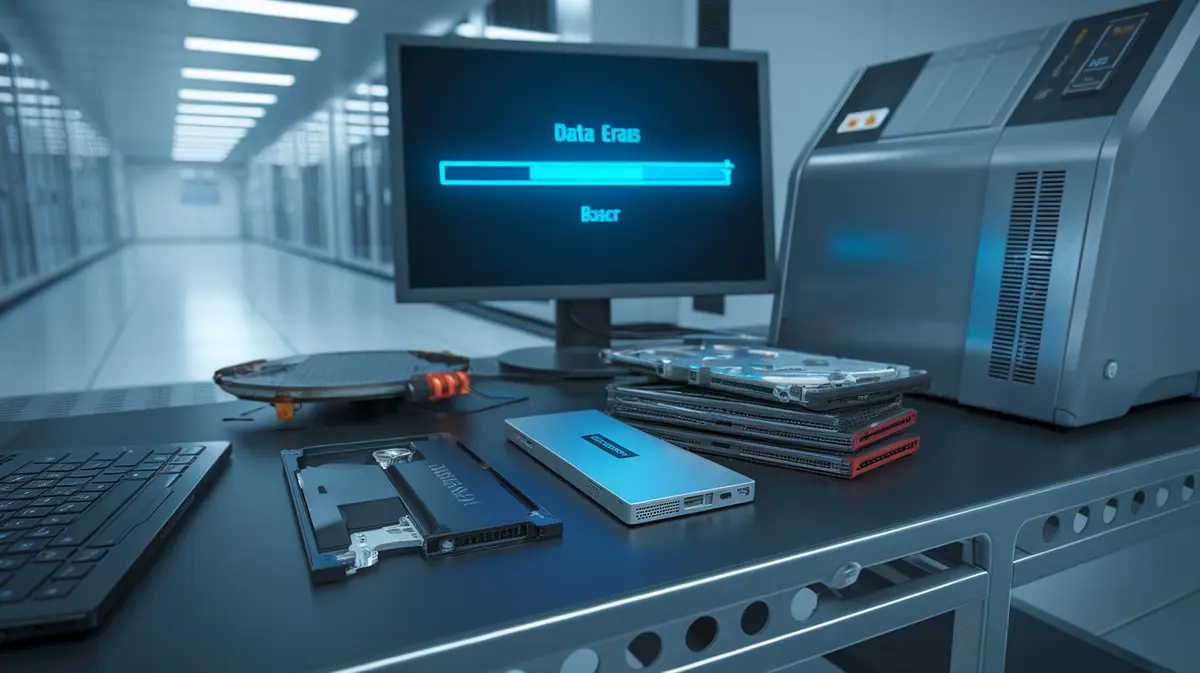
SSDs include built-in commands that tell the controller to erase every cell, including the hidden ones: ATA Secure Erase and Sanitize on SATA drives, and the Sanitize and Format commands on NVMe drives. Most vendor tools and many laptop BIOS menus expose them as “secure erase” or “drive sanitize”. Quality varies by vendor, so check the result, and use a tool that reports whether the command actually completed.
Degaussing does nothing to an SSD, since flash memory does not store data magnetically. It does work on hard drives, but it also destroys the drive, and the strong fields modern high-density drives need mean cheap degaussers often fall short.
Cryptographic Erase: The Fastest Purge
If a drive was encrypted from day one, you can sanitize it by destroying the key. Without the key, the remaining data is random noise. Self-encrypting drives (SEDs, often labelled TCG Opal) do this in seconds with a crypto erase command. Phones work the same way: a factory reset on a modern iPhone or Android device discards the encryption keys, which is why it counts as a strong erase.
BitLocker on Windows and FileVault on Mac give you most of the same benefit. Because the data was always stored encrypted, an attacker who recovers old cells gets only ciphertext. Two conditions matter: encryption must have been on before sensitive data was written, and the recovery keys stored in your management console or Microsoft or Apple account must be deleted when the device is retired. That is a strong argument for turning on full-disk encryption across your fleet now, long before disposal day.
The Devices People Forget
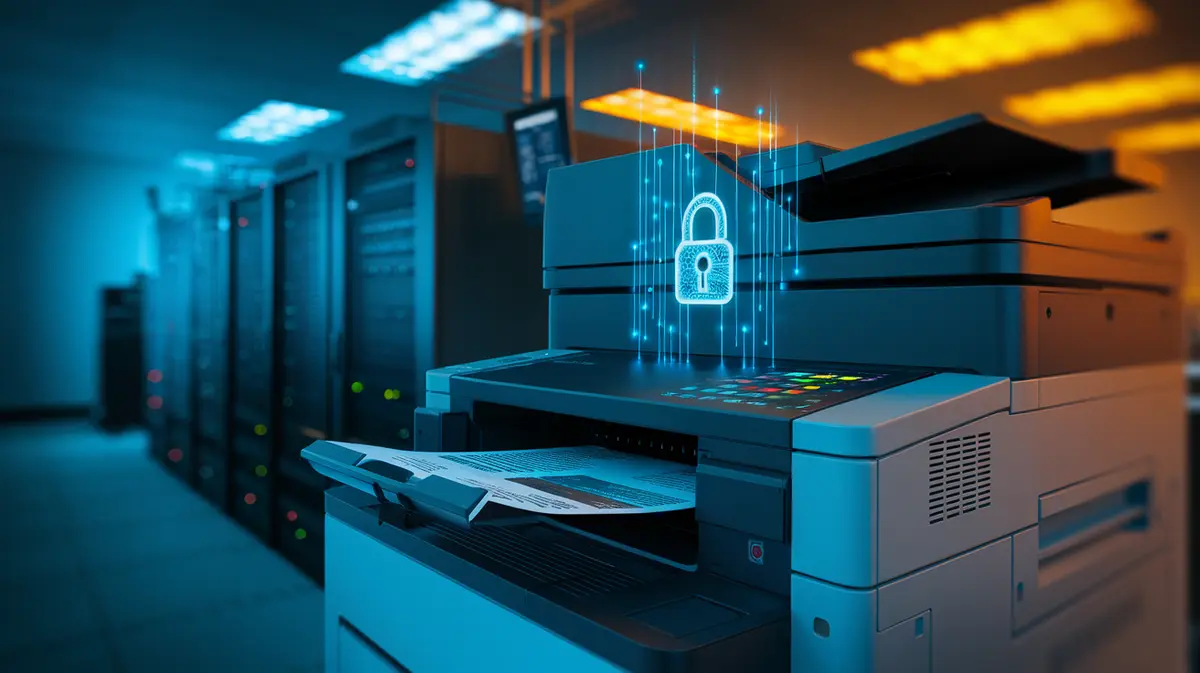
- Copiers and multifunction printers. Many store scanned and printed documents on an internal drive. Leased units go back to the dealer with that drive inside unless your contract says otherwise.
- Network gear and firewalls. Configuration files hold VPN keys, Wi-Fi passwords and admin credentials. Factory reset them before sale or recycling.
- NAS boxes, security camera recorders and phone systems. Each has its own drives with recordings, voicemail and file shares.
- Failed drives sent back under warranty. A drive that will not power on cannot be wiped. Many vendors offer a keep-your-drive option so you can destroy it yourself instead of shipping the data back.
- USB sticks and memory cards. Cheap flash rarely supports a proper sanitize command, so physical destruction is the safe choice.
Choosing a Disposal Partner
If you send devices to an IT asset disposition (ITAD) company or a recycler, ask for proof rather than promises. Look for NAID AAA certification for data destruction and R2v3 or e-Stewards certification for responsible recycling. Ask for a certificate of sanitization that lists each device by serial number, the method used, the date and who performed it. For shredding SSDs, confirm the particle size: flash chips are small, and a shredder built for hard drives can leave chips intact. Particles of a few millimetres are the usual target.
A Simple Retirement Checklist
- Keep an asset list with the serial number of every laptop, desktop, drive and storage device, and record when each one leaves service.
- Turn on full-disk encryption on every device now, so retirement becomes a crypto erase.
- Back up anything still needed, then sign the device out of cloud accounts, remove it from device management and delete its recovery keys.
- Purge with the drive’s firmware sanitize or crypto erase command, then verify the result.
- Destroy drives that failed, cannot be verified, or held highly sensitive data.
- File the certificate of sanitization with the asset record. Privacy regulators and cyber insurers increasingly ask for it.
Need help retiring old equipment?
Internet Pros helps businesses turn on fleet-wide encryption, build an asset inventory, and retire laptops, servers and network gear with documented, verifiable data sanitization. Contact our team to plan your next hardware refresh without leaving your data behind.